
Jump Links
-
What is PhotoDemon?
-
It opens PSD files
-
Great selection tools
-
Brush, pencil, and gradient options
-
Basic adjustments and effects for photos
I’ve used Photoshop for years because for the longest time it felt like there was no real alternative. Ever since canceling all my Adobe subscriptions, I had no choice but to look for replacements. And I’ve actually come across so many gems along the way. GIMP and Photopea are obviously the top contenders, but other free and open-source graphics apps aren’t that far behind.
Recently, I discovered PhotoDemon. It’s a free, portable, open-source photo editing and graphic design app. I’ll say right now that it isn’t as powerful as Photoshop. However, I was paying for Photoshop features I never used, so humbler apps don’t deter me at all as they tend to strike the perfect balance between lightweight and functionality. And PhotoDemon does hit that sweet middle ground.
What is PhotoDemon?
An underrated Photoshop alternative
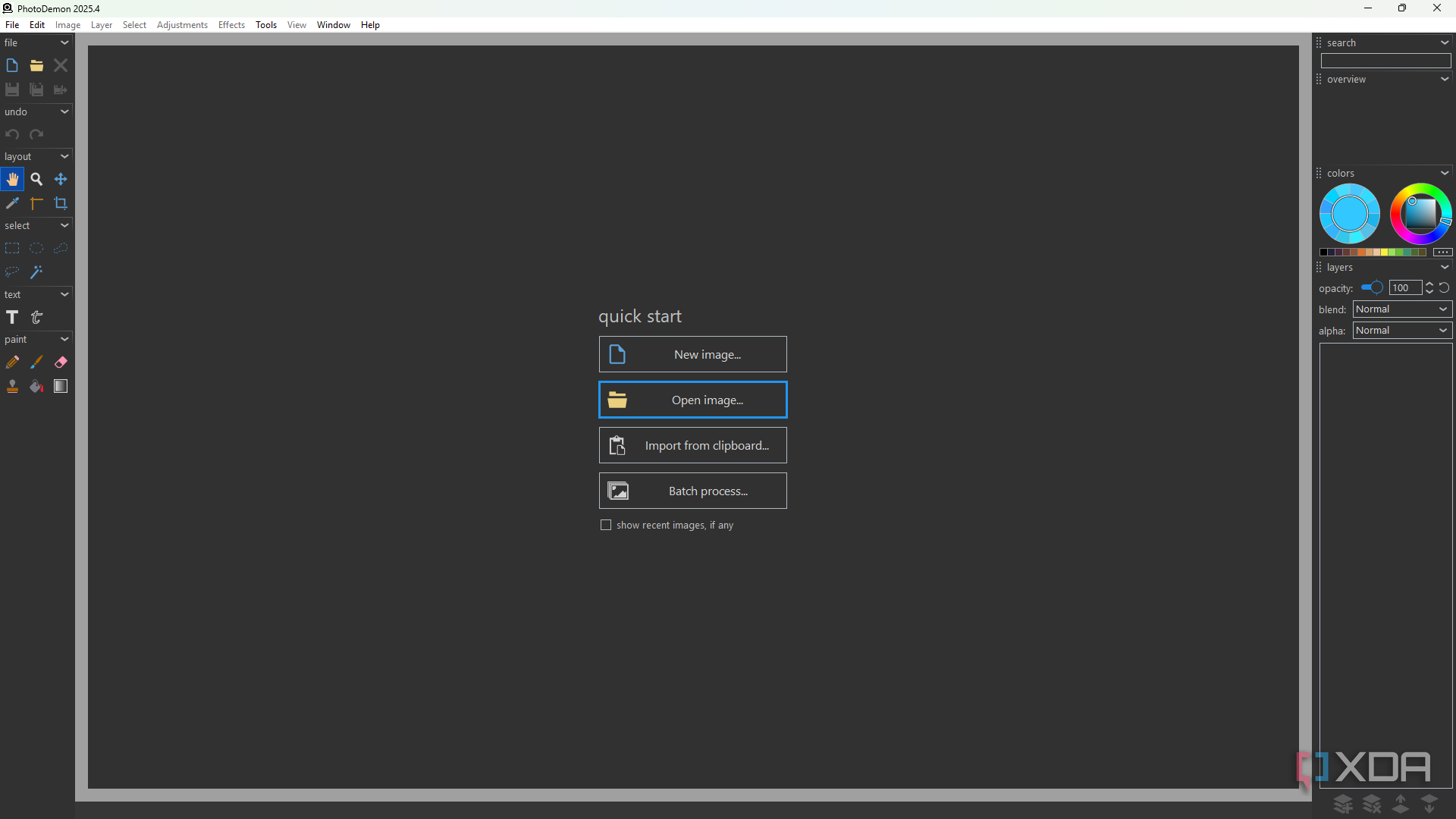
I’d never heard of PhotoDemon until just a few weeks ago, but it was first developed in 2017 with the intent of being a lightweight, Photoshop alternative. It’s 100% free and open-source with no paid tiers or hidden costs. It’s also a portable app, so you can run it without installing it. The biggest downside is that it’s Windows-only, so Mac and Linux users are out of luck.
Upon opening the app, you’ll find that the layout is similar to Photoshop’s, albeit a little more stripped-down. The workspace is clean and functional, with your tool panels on the left, layers and other property adjustments on the right, and options at the top. All of your standard image and graphics editing features are included, such as layers, masks, brushes, selection tools, and so on, and you can use them non-destructively with the adjustment layer function. It also has a themeable interface and some layout customizations.
Overall, it’s the perfect Photoshop alternative for anyone who just doesn’t want to pay a subscription fee, has modest hardware, doesn’t want to rely on the cloud, or who prefers a slightly less bloated setup.
It opens PSD files
Unlike many Photoshop alternatives
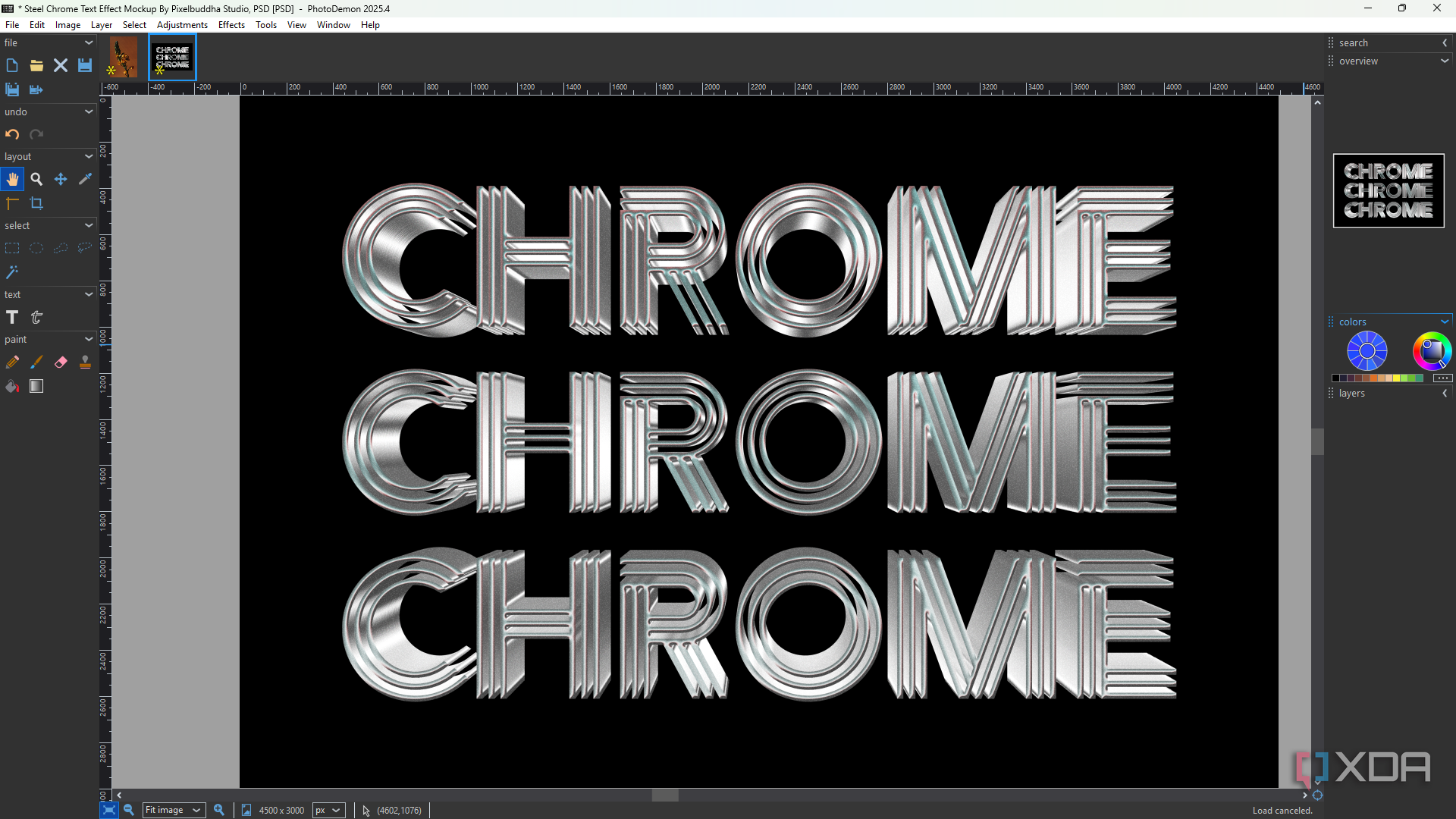
One of my biggest gripes with Photoshop alternatives is that they tend to break PSD files. GIMP is kind of notorious for its inability to properly load PSD files, and even Photopea, which is a PSD editor, sometimes breaks them. So it’s always refreshing to find an app that can handle them smoothly. PhotoDemon keeps all the layers editable and handles all the major color spaces – RGB, CMYK, grayscale, monochrome, and Lab – as well as various color bit depths like 16-bit and 32-bit. That means you can transfer your Photoshop projects without worrying about losing the details.
Great selection tools
It’s almost Photoshop-level good
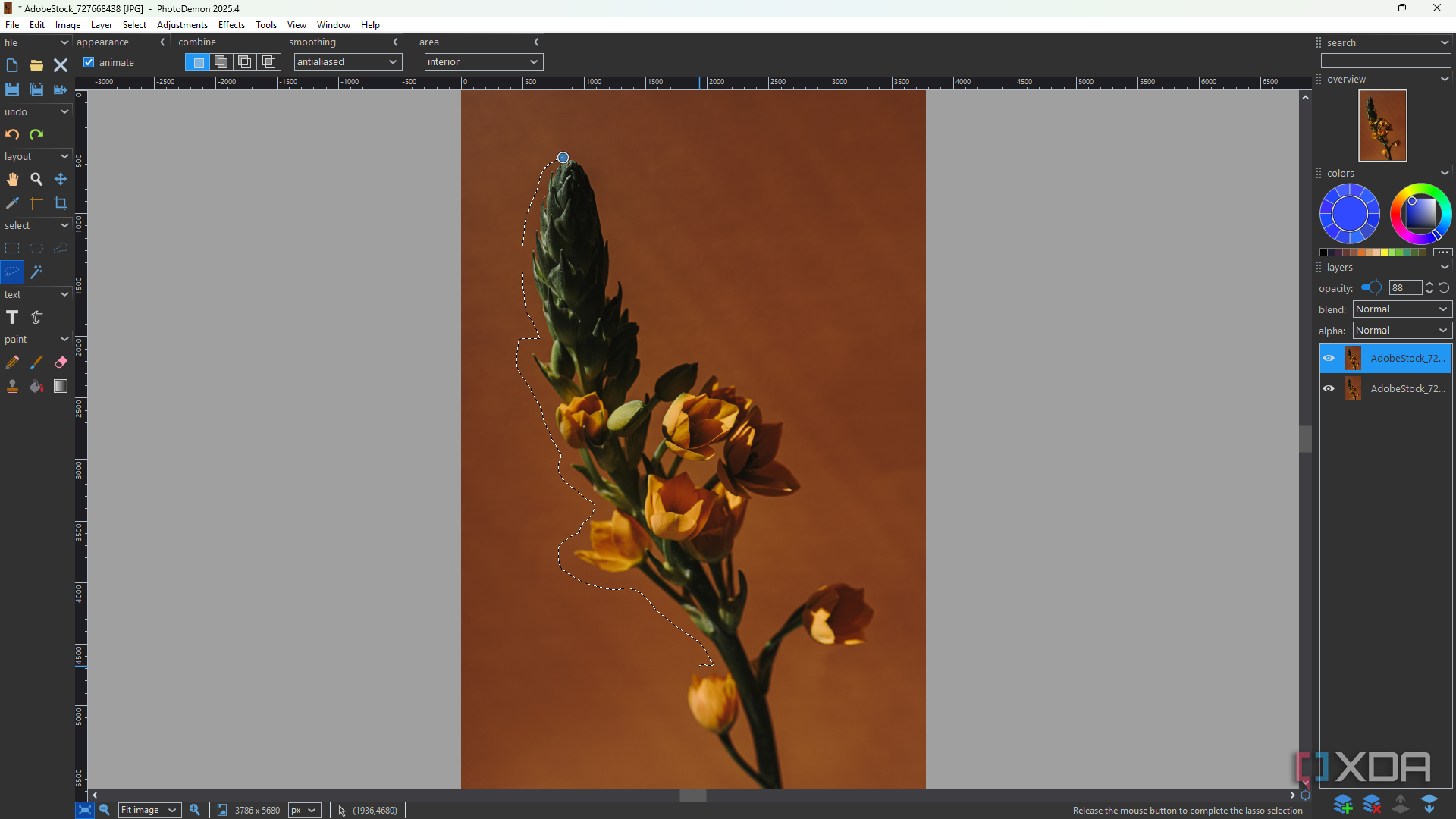
PhotoDemon has a handful of selection tools that let you isolate subjects and create masks. There are the standard Rectangular and Elliptical tools. But it also has a Polygon tool, which is perfect for larger subjects with straight edges or creating angular masks. While the Lasso tool is ideal for finer selections with lots of curves. There’s also a Magic Wand tool, like in Photoshop, that makes the selection for you – and it’s pretty accurate most of the time.
You can fine-tune your selections with some of the properties at the top. There are Anti-aliased and Feathered options for perfecting the edges of your selection, as well as different type of selections such as New, Add, Subtract, and Intersect. And, of course, you can adjust the opacity and blend modes. This set of functions is all I need for techniques like background removal, duplicating subjects, and any type of composite editing.
Brush, pencil, and gradient options
Everything I need for more creative edits
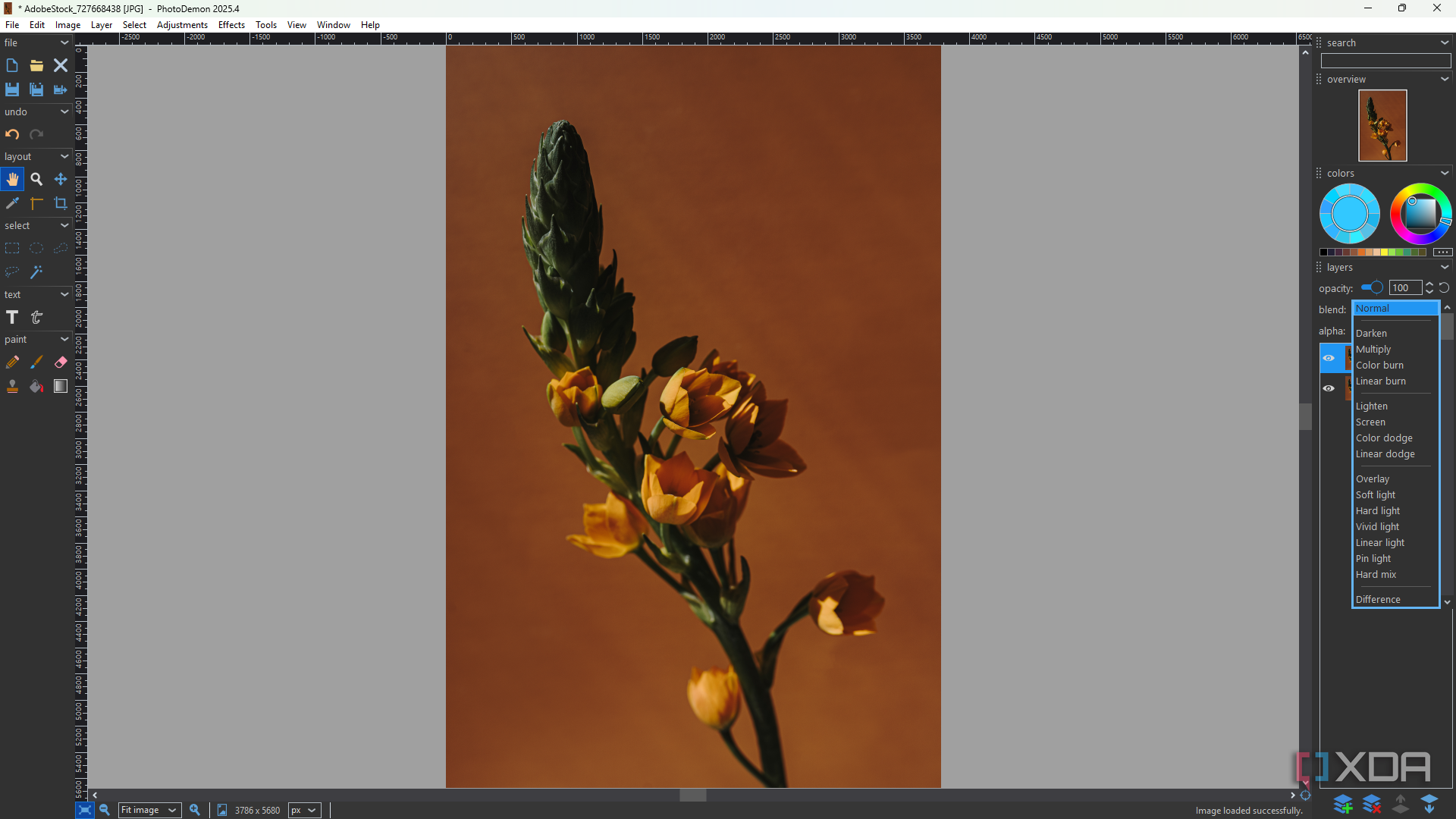
PhotoDemon offers a surprisingly robust set of tools for more creative work like painting and drawing. The Pencil and Paintbrush tools are fully customizable in terms of size, color, opacity, blend mode, and hardness. While it’s not quite on the level of dedicated drawing apps like Krita, you can still whip up basic illustrations and artwork. Besides, brush tools are perfect for creating masks and custom blending in image editing, too.
Then there’s the Gradient tool, which is probably the tool I’ve had the most fun playing with so far. It comes with adjustment properties like blend mode and opacity. But what I like most is how many shape options there are. Most free graphics tools only let you choose between Linear and Radial – PhotoDemon also has Reflection, Spherical, Square, Diamond, Conical, and Spiral. This little set is more than enough to create really cool overlays or even pattern-like designs.
Basic adjustments and effects for photos
It’s a full editing suite
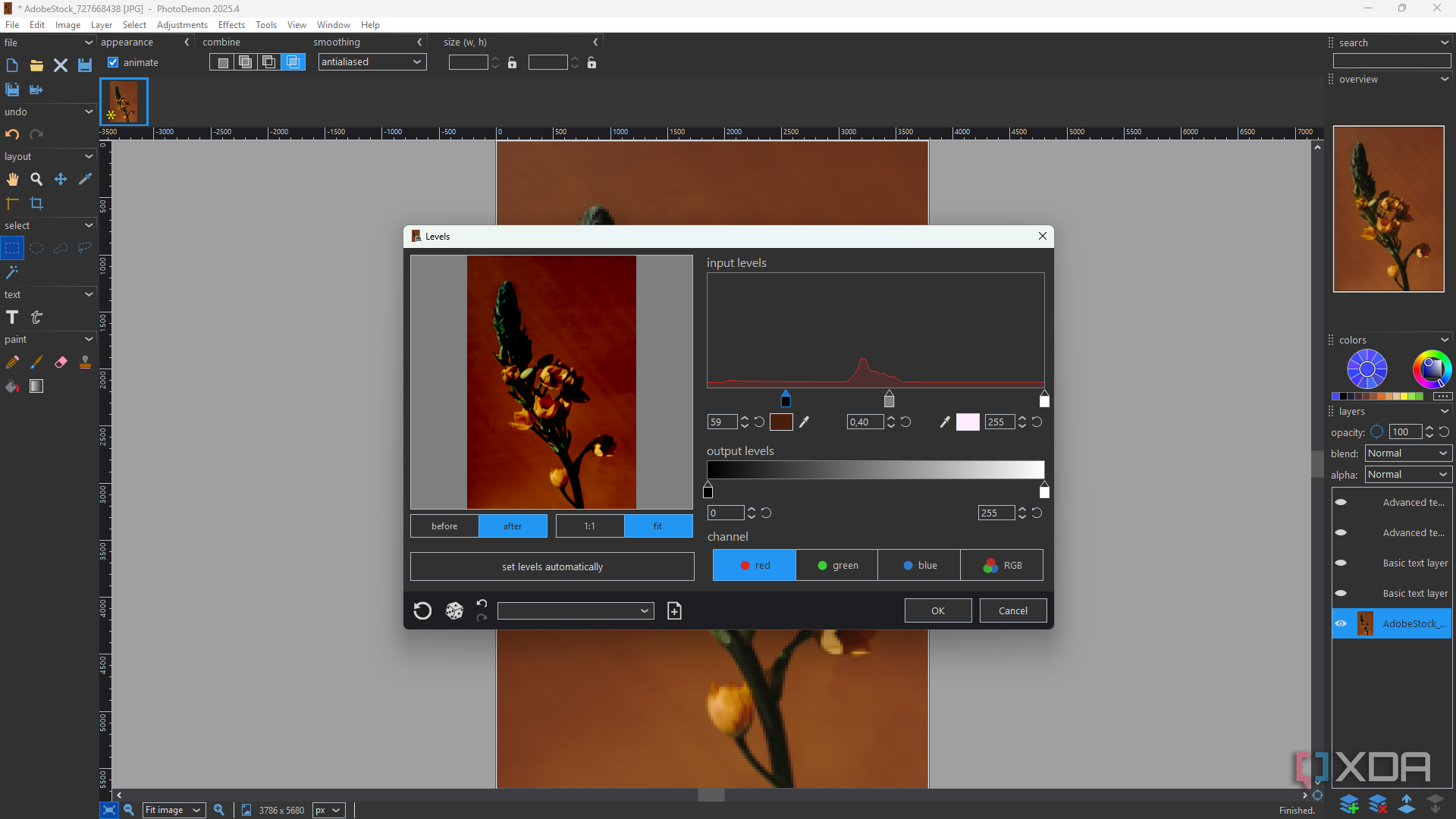
Last but not least are the basic adjustments and filters, which you’ll find in the top panel. It has all the color correction, color grading, and lighting adjustment options you could need for transforming your shots. This includes controls like Curves, Levels, and Color Balance. It even has a Histogram and a Gradient Map tool. The filters are also nothing short of impressive – pixelation, blurs, noise, lights and shadows, and much more.
As an aside, I also wanted to mention its text editing capabilities. It has an Advanced Text tool, which gives you control over the fonts, size, positioning, perspective, and fill type. This is more than I can say for other Photoshop alternatives.
A must-try Photoshop alternative
PhotoDemon can’t entirely replace Photoshop for professional work, but it’s more than enough for hobbyists who are paying for a bunch of features they don’t need. It’s a fully-fledged graphic design and image editing tool with every option you need for decent creations and transformations. So if you’re not into the complexity of GIMP, or don’t like that Photopea is browser-based, definitely give PhotoDemon a go.


